What is JoyToKey?
JoyToKey (or Joy2Key) enables PC game controllers to emulate keyboard and mouse input, so that Windows applications and web games can be controlled with your favorite joysticks! Whenever buttons and sticks are pressed on the controllers, JoyToKey converts them into keyboard strokes and/or mouse movements so that the target application will work as if a real keyboard and mouse were being used.
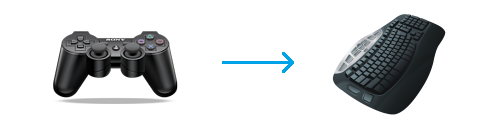
Joystick to Keyboard input
JoyToKey is shareware, but you can download the latest version for free. Try it on your PC to play games that don't have native controller support using your favorite joysticks and/or use it for general applications to improve efficiency by registering frequently used key shortcuts as joystick input. If you find JoyToKey useful, you can purchase a license key at any time from the JoyToKey application menu.
Information
Location of user configuration data (profiles)
When JoyToKey is installed from the installer (JoyToKeySetup_en.exe), user configuration data is stored by default in the "JoyToKey" folder in the user's "Documents" folder.
If you can no longer find your configurations after upgrading JoyToKey, please manually copy the configuration files (JoyToKey.ini and *.cfg files) from the old "JoyToKey" folder into your "Documents/JoyToKey" folder so that your old configuration data can be accessed. For more details, please refer to this page.
JoyToKey Version 7.4 Released
Version 7.4 includes the following changes:
- Added support for Command input (an extension of sequence input)
For more details, please refer to this blog page
- Changed the code-signing certificate from Sectigo to Microsoft Azure Artifact Signing.
As a result, you might encounter a security warning when downloading or installing the file during the transition period. If a warning pops up, please check the publisher details to confirm it says "FREE COLORS, LTD." (ensuring the file hasn't been altered by a third party), and then continue with the download and execution.
- Bug fix for button release in the middle of sequence execution
- Other minor bug fixes (such as logging)
Other notable changes included in the recent releases:
- Added support for "Auto start with Windows".
To use it, launch JoyToKey as an administrator by right-clicking it and selecting "Run as Administrator", then enable the menu "Settings" -> "Auto start with Windows".
- Support for the dark mode
- Support for high DPI display
- Button display template
For each joystick device (or tab), you can configure the button display names from the right-click menu (or from the device configuration menu) like "A", "B", "X", "Y", ... , instead of "Button 1", "Button 2", ...
- On the joystick tabs, device names will be displayed by default.
Users can also edit the device name for convenience. (Right-click on the tab, and select "Edit the display name for this device")
- In the device configuration window, added the ability to delete the configuration of an old (disconnected) device
- You can now define a button to trigger the assignments defined on other buttons.
For example, you can configure the following:- When Button1 is pressed for a short duration, rotate the input across Input1 -> Input2 -> Input3 -> …
- When Button1 is pressed for a long duration, enable SHIFT function
- Various enhancements to "Keyboard(Multi)" functionality
- Switch rotation - Added the ability to reset the counter when a button isn't pressed for a certain duration. That is, the next time the button is pressed, it will go back to Input1.
- Switch depending on how long the button is pressed - It is now possible to assign an additional key "Input3" when the long-press is released.
- When the button assignment changes due to SHIFT function or active profile switch, there has been a feature to ignore the already pressed input "for the specified time". This feature was enhanced so that it can also ignore the input "until it's pressed again".
- Added a feature to trigger a custom vibration pattern when the active profile is switched (under the Options tab).
NOTE: Currently, it is limited to the first XInput device. If you need notifications on other devices, please let us know.
- Enhanced "Configure diagonal input as separate buttons" feature such that it can be configured separately for left and right sticks.
(Under "Options" tab -> Show/Hide Buttons)
- Updated the application icon - special thanks to Peter (Silent_ip)!
- Enhanced the automated association of profiles based on the target application as follows:
- if both path and title are specified, profile will switch only when both are matched
- if only path is specified, profile will switch if path is matched
- if only title is specified, profile will switch if title is matched
- Added a feature to paste predefined text into the target application
- Added support for repeat and toggle click in absolute mouse movement mode
- Enhanced the Button Alias function - it now supports combinations of three buttons
- Enhanced the execution of external programs to allow you to
- pass command parameters
- specify the starting working directory
- Click the task tray icon once to refresh joystick connections
When you connect a new joystick to the PC, you can just click the task tray icon to get it recognized (either left-click or right-click). - Added support for multiple screens for absolute mouse cursor movement.
- Added support for additional key code emulation, such as the volume control (up / down / mute), media control (prev / next / play / stop), and SCROLL_LOCK key.
- Changed the default key emulation code for arrow keys, R-Alt and R-Ctrl, to fix a compatibility issue with recent versions of Windows 10. If this causes a problem for certain old games and you want to use the old key code, select the equivalent key labeled "for DirectInput" from the right-click menu in the button assignment window.
WARNING: Be careful with unofficial download sites
JoyToKey appears to be distributed on various unofficial websites, and some of them appear to be distributing cracked or tweaked software that may also include malicious software.
They are not official distributions, and the author of JoyToKey is not involved in any of those activities. Unless you have a good reason to trust those unofficial websites, you should download JoyToKey from the official download page to avoid unnecessary trouble.
(There are some useful third-party websites, though; for example, a site for people with disabilities where JoyToKey is packaged with predefined configurations for PC accessibility.)
Releases
- Oct 4, 2026
- JoyToKey 7.4 Release
- Apr 30, 2026
- JoyToKey 7.3.3 Release
- Nov 24, 2025
- JoyToKey 7.3.2 Release
- Oct 19, 2025
- JoyToKey 7.3.1 Release
- Aug 28, 2025
- JoyToKey 7.3 Release
- Jul 21, 2025
- JoyToKey 7.2 Release
- Jun 3, 2025
- JoyToKey 7.1.1 Release
- Jan 13, 2025
- JoyToKey 7.1 Release
- May 3, 2024
- JoyToKey 7.0 Release
- Jan 23, 2024
- JoyToKey 6.9.3 Release
- Sep 9, 2023
- JoyToKey 6.9.2 Release
- Aug 30, 2022
- JoyToKey 6.9.1 Release
- Aug 14, 2022
- JoyToKey 6.9 Release
- Jan 29, 2022
- JoyToKey 6.8 Release
- Aug 28, 2021
- JoyToKey 6.7 Release
- Mar 14, 2021
- JoyToKey 6.6 Release
- Aug 16, 2020
- JoyToKey 6.5 Release
- Jun 3, 2020
- JoyToKey 6.4.3 Release (bug fix)
- Apr 19, 2020
- JoyToKey 6.4.2 Release
- Jul 21, 2019
- JoyToKey 6.3 Release
- Feb 2, 2019
- JoyToKey 6.2 Release
- Sep 23, 2018
- JoyToKey 6.1.1 Release
- Sep 16, 2018
- JoyToKey 6.1 Release
- Sep 9, 2018
- JoyToKey 6.0 Release